Thursday, September 2, 2021

New! Age Based Settings Google Edu Admin Update


On September 1, 2021, the Google EDU Admin console enabled age-based settings which requires some updates for teachers, administrators and other adults to maintain access to ALL services.

Most EDU domains are set up with organizational units that clearly separate students from adults so this change is easy to update.  If your under and over 18 accounts are not already in separate organizational units you will need to do that first or set up an over18 group.

Account Settings for Over 18

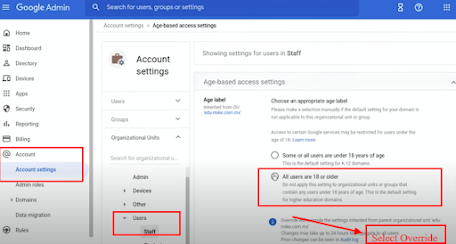
To complete the steps for setting age based access settings:

  1. Log into admin.google.com
  2. Select Account
  3. Select Account Settings
  4. Scroll down to 'Age Based Access Settings'
  5. Select the OU that is 'over 18' such as STAFF or TEACHERS.
  6. Select All users are 18 or over
  7. Select 'Override'
  8. Repeat as needed for all over 18 groups.
Additional Services for Over 18

In Additional Google Services you will need to modify the setting as well.  
  1. Select Apps
  2. Select Additional Google Services
  3. At the top you will see a notification 'Access to additional services without individual control for all organizations units is turned OFF.
  4. Select 'Change'
  5. Select your Over 18 Organizational Units 
  6. Change Service status to 'On'
  7. Select 'Override'

Creating Over18 Group 

If you do not have your users set up in separate Organizational Unit, do that first.  If you cannot easily change your OU's to separate under and over 18, you can set up a GROUP for over 18 users.
  1. Select Directory
  2. Select Group
  3. Select 'Create Group'
  4. Name it '18Older'
  5. Set permissions
    1.  Group Members (deselect View members, View conversations & Publish posts) 
    2. Deleselect 'Contact Owners' under 'Entire Organization'
  6. Set Who can Join to 'Only Invited Users'
  7. Set the 'Allow members outside your organization' to OFF
  8. Add your members to the Over18 group (Select group & select the ADD button)
Tip!  You can add Classroom Teachers, Staff Lists etc to the group.  

Once the group is set up repeat the steps at the top to configure this group to access the over 18 settings.  

Watch this video for step by step tutorial:


Questions

What if we use Active Directory Sync? 
Visit goo.gle/gcds for steps to address ADS with this new change.  

We use GAM and have many OU's.
Visit goo.gle/gam for documentation on how to configure the age based settings with GAM updates.  

What if I need more information?
If you need additional assistance or information, just visit the Google Help Center at goo.gle/compliance-help

Thursday, January 23, 2020

G Suite Admin: Search Drive for Shared Files

Quick Sharing Check Users Can Do to Audit Google Drive

Technology administrators are often focused on what they can configure at the admin level to protect or limit users from dangers that lurk in our ever connected world.  One thing, often overlooked, is the need for the actual 'user' to take steps to protect themselves and others.  For schools using G Suite, there is often gaps in training or protocols to ensure that users are sharing responsibly to protect themselves and others, especially the privacy of students.  Schools and districts that are lucky enough to work with security consultants, like RTM Communications, are provided guidance in this area as part of conducting a technology audit.

One thing that everyone can do today, is have users conduct a quick sharing check to ensure they are not sharing things to the public or with everyone in the 'domain' that are best set to private or shared only with specific and authorized viewers.    Key things to be on the lookout for are any item that would reveal private information about a student such as special education services or discipline referrals, for example.

These are the steps to follow to evaluate your shared files:
  1. Open Drive (drive.google.com)
  2. Select the dropdown in the search field at the top to set specific search criteria.
  3. Under 'Owner' select 'Owned by Me'
  4. Under 'Location,' select 'Visible in 'mydomain'
  5. Select 'Search'


Here is a video that goes a bit further to explain how to modify the share settings should you need instructions for that.


If you have questions or want to inquire about bringing G Suite training to your organization, please feel free to DM me on Twitter or email me.    For security audit and network support, contact RTM Communications.  


Tuesday, January 14, 2020

G Suite Admin: Turn On 2 Step Verification for Users

Privacy and security are at the top of the list of concerns for any technology admin no matter what organization they manage.  The G Suite Admin panel has many security options available to help keep data and users protected from phishing, malware and more.  

One security option that is becoming increasingly popular to deploy is two step verification (2SV).  Many people already have used 2SV in their daily lives to reset passwords for bank and other personal accounts and may want to have the option to turn it on for their G Suite account.  It adds an extra layer of security to your user accounts managed via the Google Admin Control Panel by making users enter a verification code (in addition to user name and password when they sign in to their account).   Many tech experts recommend that you require it for all users but that is entirely your choice.  I'll share with you how to configure it in the G Suite Admin panel.  


'Allow Users' to Turn On 2 Step Verification in the G Suite Admin Panel


1.  Sign into admin.google.com & select the Security option.


2.  Under Basic Settings, select 'Allow Users to Turn on 2 Step' & select Save.


How Users Turn On 2 Step Verification (Individual Accounts)


1.  Users select 'manage account' from the 'Google Account' menu (top right corner)


2.  Select Security & then 2 Step Verification to Turn it on.


Once the user gets that far, it is pretty intuitive.    In the Admin Panel you can modify it, there are several options.  If you are looking to make it 'available' to users without 'forcing' it upon them, these steps will do the trick.  

For more information, check out the support article from Google, 'Protect your Business with 2 Step Verification.'    If you have been using this, you might want to check out the update they posted in March 2019.  


Thursday, January 9, 2020

Libary Catalog Ninja ~ An 100% Guaranteed Online Scavenger Hunt with Google Forms

I was recently talking with a colleague who has been a librarian for years and is pretty tech savvy but I discovered they were still using PAPER and PENCIL for their library orientation activities so I shared this idea to use Google Forms, Data Validation & Quiz Mode.   Basically, I set up a form with a series of questions and turned on 'Data Validation' for each answer so that the student have to enter the correct answer for each question in order to submit the form.  It reduces apathy and they all win!  They all are guaranteed a 100%.   

You can do this as an online (catalog and library website) search, physical library space or a combination of both.  This concept can be applied to ANY curriculum area, age level, audience, etc.   Leverage the tools you already have! Forms has these great features built in and Response Validation and Sections are underutilized by teachers!  

The 'Library Catalog Ninja' (shown below) is broken into sections so the actual questions do not appear until the students have signed in.  This is where you can add a 'password' to get into the hunt and change it for each class to keep the questions more secure.  However, this is so much fun and not high stakes that students rarely feel compelled to 'share.' 

Section / Page 1 to enter Name & Passcode (when applicable)
 

Google Form Quiz example for library
Page/Section 2 with all of the required questions.

How to Create Your 100% Guaranteed Quiz

1.  Go to forms.new to create a new Form.

2.  Add your questions.  I suggest you ask name, add a passcode question (if applicable) first and then insert a section and add all the quiz questions in section 2.  This keeps them from appearing on the main page until the student enters the quiz code.  


3.  Turn on Quiz (in settings)


4.  For each question, select the drodown in the bottom right corner and turn on Response Validation.  Then add the criteria such as 'is equal to 311.12'  Be sure to put 'something' in the hint or the hint will tell the student the correct answer!  


5.  Edit your answer key and enter the correct answers.  


6.  Try it out yourself until it works seamlessly, it's easy to make small mistakes.


7.  The best way to share this is through Google Classroom.  In fact, you can save a lot of time and steps if you create it IN Google Classroom in the first place.  Just open your class and go to the Classwork page.  Then, add a Quiz assignment.  The form will be linked right there you can open and edit.  You will not have to turn on th quiz feature as it will already be enabled for you.  


Saturday, October 20, 2018

The Insiders Guide to Gmail Inboxes


As a seasoned Google Certified Trainer I have seen thousands of GMail Inboxes  with 1K+ unread messages and clearly no organized approach to managing email. Over the years, I have applied some successful strategies to managing my GMail inbox to achieve what is often referred to as 'inbox zero.'  The best place to begin is by selecting the right inbox. I use a different inbox type for my teacher/business account than my personal GMail account and in this post I will outline both, why and how I leverage these tools.

Priority Inbox for Work / School Email

In 2010, Google introduced 'priority inbox' and this was a life saver for me in making sure I was ultra responsive to student, parent and client requests.  Rather than having all emails coming in (by default) in chronological order of 'unread' messages, priority inboxs has three sections on the inbox home page:
  • Important & Unread
  • Starred
  • Everything Else
The important emails (ones coming directly to me from a specific person (not promos or list servs), arrive at the top of the page and everthing else (promos, list servs, etc) go to the bottom.  Basically if it doesn't need my immediate attention, it's pushed and grouped at the bottom of the page.  

Making Priority Inbox Work

Each time I visit my email I addresss the top of the page, the important and unread and act upon as many as  I can.  Once I read them, they will be moved to the collection of email at the bottom of the page.  

At the end of the day or at a time when I am performing email clean up, I make the goal to have nothing on the page but 'starred.'  My important and unread is empty and at the bottom of the page is 'everything else.'  I go through and do a final act upon those emails by ether 'starring' them which placed them in the middle section of the inbox as 'starred' meaning they need to be acted upon but not right now.  The other option is to create a TASK with a due date from the email and then archive it.  With the Artificial Intelligence feature 'Nudge' built in I worry less about archiving emails because GMail will bring emails BACK to my inbox a few days later asking if I still need to do something with it.  

Priority Inbox (circa 2010)


Enable Priority Inbox

By selecting Priority Inbox your email will be 'instantly' reorganized.  You'll probably be shocked at some 'unread' messages you completely missed by not having it enabled.  To enable it, just hover over the word 'Inbox' in the top left of your inbox and select Priority from the dropdown list.  


Inbox Tabs (Categories) for Personal GMail  

In 2012 Google introduced a 'Tabbed (category) Inbox' which creates separate tabs as categories in your GMail inbox separating email by the following:

  • Primary - messages from people you know
  • Social - notificiations from Google Plus, YouTube, Pinterest, Twitter, LinkedIn etc
  • Promotion - Offers, promotions, etc.
  • Updates - Bills, payments, orders, package tracking
  • Forums - List serves and conversation groups

Why Tabs for Personal GMail

Most people register for social media, household accounts, shopping, mailing through their personal GMail account so the amount of email can be substantial between all of the activity one person is involved with online. The categories are perfect keeping your important 'conversations' on the primary tab and grouping social media in one tab (which I mostly just select all and delete periodically), and easily see through color coded notifications if an 'update' comes in while working through your primary messages.

Meet Gmail's Tabbed (Category) Inbox (circa 2012)


Enable Tabbed Inbox (now referred to as 'Default)

To enable tabs for the first time, go to the gear and select 'Configure Inbox.'  Initially, select all the categories to see how your messages get bundled.  You can go back later and remove categories you don't want.  

You can also 'train' both priority and tabbed inbox.  If GMail marks a message important you don't think is important, just remove the 'importance market' and future emails matching that will not be flagged important.  If using categories, drag emails to the category you would prefer they were in and GMail will ask if you would like to recategorize all future messages that match.  

Monday, September 17, 2018

Learn to Code Your First Android App with AppInventor

There are loads of 'learn to code' resources on the web but it can be difficult to find something you can put to work right away to teach yourself or others. A while back I dove deep into the MIT AppInventor site to build an Intro to Apps course for middle school. I have presented a portion of it as one or a series of sessions at the AppsEvents Summits Feel free to use the presentation as it has directions for building two simple apps using the AppInventor interface on a Chromebook or Laptop.  You can also install the MIT Companion App on your Android & sync it run/test the app as you build. 
The sense of accomplishment and motivation you get from this is similar to what you might get coding 'tangibles' but with no cost or space requirements. Everything is FREE you just need devices.

Slides for Learning or Facilitating

This slide deck you can follow the directions or facilitate a workshop. In less than an hour you can code 'Hello Purr' and 'Magic Ball' which both young and old seem to get really psyched about when they see it work.

FAQ's

Q. Are there any network requirements?
A. Yes, you need to be on the same WIFI and it cannot block network traffic. I've had trouble presenting this at some schools and had to have everyone connect to my own mobile wifi.

Q. What if I don't have Android devices to test on?
A. There is an install for an 'emulator' you can put on your 'computer' which puts a little phone screen on your desktop that will since with the program and you can test it out that way.

Q. Is there an IOS version?
A. Yes, there is a new program called Thunkable that you can work with, I don't have the directed posted for the above through Thunkable but you should check it out. It's free.


Extended Learning

If you do this and want to have some more fun, level up and make the PONG App! The directions can be found at allisonmollica.com > Presentations > My First Android App at the bottom of the page. Happy Coding!


Wednesday, September 5, 2018

Fast & Effective Way to Leverage G Suite & Chromebooks in the Classroom

Many teachers are finding themselves starting a new school year in a 1:1 Chromebook school or just beginning to use G Suite and haven’t necessarily had enough training to feel confident about leveraging and making best use of the Chromebooks or G Suite as classroom staples. In a fast paced world of leading learners, teachers need a quick and effective way to make best use of the Chromebooks & G Suite without losing ‘pace’ with what they already know how to do.

A fast and effective start is to experience how Google classroom works with a single assignment using the Google document. The powerful sharing, naming and organizing convention of this tool will put you on the fast track of leading learners, providing feedback and personalizing learning through a variety of instructional tools as well as options for demonstrating understanding. If you have never used Google Classroom before, use this ‘Getting Started Guide’ to help you.


Engage Your Students with a Simple Google Docs Assignment in Classroom


Google Classroom is a tool that is amazing for organizing, naming and auto sharing documents, slides, sheets & more between you and your students. Even if you don’t plan to use Classroom ‘often’ it is still worth creating a class and having every student enrolled as this alone will allow you to interact seamlessly with other apps.

  1. Set up a Classroom for a class via classroom.google.com 
  2. Create an assignment asking students to create a document and provide a writing prompt or a series of tasks to research about the upcoming course (what do you know, answer a few questions, write about your goals for the school year, etc). The key is you want them to be able to engage in writing that will be of value to the start of the course or school year for a good portion of the first class or hour.
  3. When students arrive to class, invite your students to the class or join by code.
  4. Ask students to open the assignment and begin contributing the document.
  5. While they are working, click the folder icon on the assignment in classroom, open all of their documents in one browser window.

The students will see that you are ‘in their document’ and will immediately be more engaged in their task.  This is an excellent opportunity to practice the ‘compliment, coach and encourage’ technique through the use of comments. Find something first to complement on in each document to help build trust and a positive working relationship. If they seem stymied, offer help.
Bonus option: Install the Tab Cloud Chrome Extension. Save the open documents as a tab set that you can easily reopen later so you don’t have to go through the process of opening the documents again. 


Recap checklist:


  • Set up a Classroom for a class via classroom.google.com 
  • Create an assignment with a specific writing task and ask them to create a Document to complete or create a document for them and add it to the assignment, giving them each their own copy.
  • While they are all working open each document and provide feedback with a comment.
  • Before closing, save the set of open tabs with Tab Cloud Chrome Extension (optional)
  • Have student turn in for grade (optional) and feedback.
  • Provide grade (optional) and feedback and return the documents. 
  • Now you have the ‘process for classroom assignments’ established.
Need more help with Google Classroom? Visit Google’s Teacher Center Resources for Getting Started with Google Classroom.

Attend a LIVE AppsEvents Google Bootcamp and/or Summit to learn from practicing expert educators who are G Suite Certified Trainers and Teachers.  


AppsEvents Logo
You can contact me on Twitter via @amollica or email me to inquire about bringing AppsEvents PD to your school or check out our upcoming PD www.appsevents.com